
ChatGPT “Upload Video” Feature (2026): What Works, Why It Fails, and the Reliable Link → Transcript Workflow
 Video To Text AI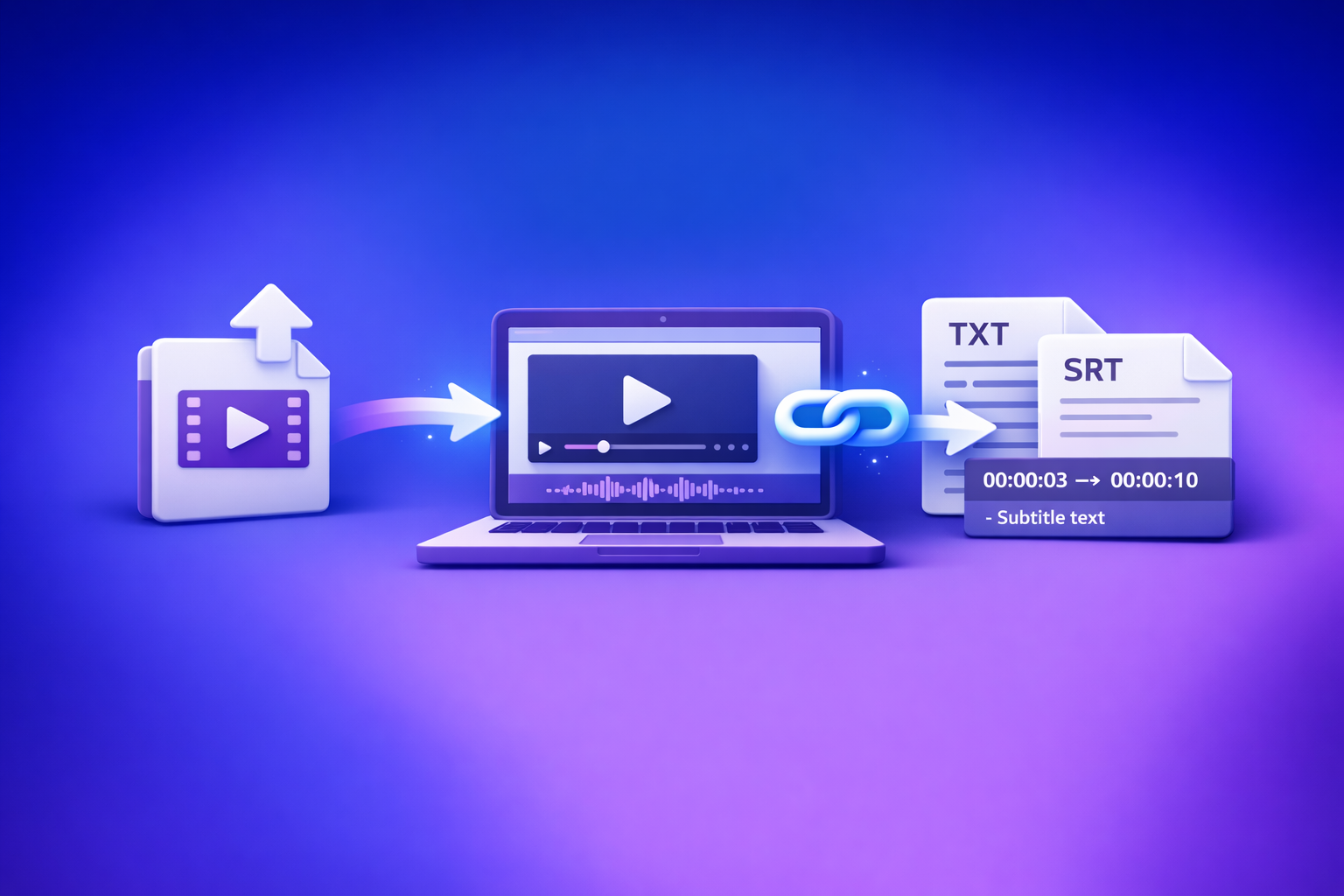
ChatGPT “Upload Video” Feature (2026): What Works, Why It Fails, and the Reliable Link → Transcript Workflow
If you need export-ready transcripts and captions, don’t bet your workflow on ChatGPT video uploads. Use a link/MP4 → transcript (TXT) + captions (SRT/VTT) → ChatGPT-on-text pipeline for reliable, repeatable outputs.
What the “ChatGPT upload video” feature actually does in 2026
ChatGPT can sometimes accept a video file and answer questions about what it “sees” and “hears.” In practice, it behaves more like clip understanding than a guaranteed transcription engine.
What “upload video” means across ChatGPT clients (web, desktop, mobile)
“Upload video” is not a single, consistent capability across all clients.
Common differences you’ll see:
- Web: upload UI may appear/disappear based on account, model, and rollout state.
- Desktop: may support different file handling and background processing behavior.
- Mobile: often optimized for short clips; may be more aggressive about compression and timeouts.
Operationally, treat video upload as best-effort rather than a stable production feature.
What outputs you can realistically expect
When it works, you can often get:
- Lightweight scene understanding (what’s happening, what objects appear).
- Q&A on short clips (e.g., “What did the presenter say about pricing?”).
- Basic extraction like visible on-screen text when supported.
What you should not assume:
- A complete, export-ready transcript with consistent formatting.
- Deterministic timestamps suitable for captions.
- Full coverage on long videos without dropped segments.
Why “full, export-ready transcript + captions” is not guaranteed
Captions require strict artifacts:
- SRT/VTT formatting
- Accurate timestamps
- No missing segments
- Consistent segmentation and reading speed
ChatGPT video upload is not designed to guarantee those artifacts every time, especially under file, network, and queue constraints.
When ChatGPT video uploads work (best-fit use cases)
Use uploads when the goal is quick insight, not production deliverables.
Short clips for quick analysis
Best fit:
- 10–60 second clips
- Single scene, clear audio
- One question you need answered fast
Examples:
- “What’s the main claim in this ad?”
- “What does the on-screen headline say?”
Reviewing a single moment (timestamped question)
If you already know the moment you care about, uploads can help:
- “At ~00:42, what does the speaker promise?”
- “Does the demo show feature X or Y?”
This is analysis, not transcription.
Drafting creative ideas from a clip (titles, hooks, thumbnails)
Uploads can be useful for creative iteration:
- Title variations based on the clip’s premise
- Hook ideas for short-form edits
- Thumbnail text suggestions
If you’re building a repurposing pipeline, you’ll still want a transcript-first workflow (more below).
Why ChatGPT video uploads fail (root causes you can diagnose)
Most failures are predictable. Diagnose them like you would any media pipeline: file constraints, processing constraints, access constraints, and output constraints.
File constraints: size, duration, codec, container, bitrate
Common failure triggers:
- Very large files (size caps vary)
- Long duration (processing limits vary)
- Unsupported or uncommon codecs (e.g., HEVC/H.265 in some contexts)
- High bitrate 4K exports
- Odd containers (MKV, MOV with unusual streams)
Even when the upload succeeds, decoding may fail silently or partially.
Network + processing constraints: timeouts, queue limits, throttling
Video is heavy. Upload + processing can fail due to:
- Slow or unstable connection
- Server-side queue limits
- Throttling on peak usage
- Timeouts during analysis
Symptoms:
- “Upload failed”
- “Can’t read video”
- Partial response with missing middle sections
Permissions + access issues: private links, expiring URLs, geo-restrictions
If you’re not uploading a file but providing a link, access often breaks due to:
- Private/unlisted content requiring login
- Signed URLs that expire
- Geo-restricted playback
- Platform bot protections
For production, you need stable, accessible sources.
Inconsistent feature availability by plan/account/client
Even in 2026, feature flags and rollouts mean:
- One account sees “upload video,” another doesn’t.
- Web supports it, mobile doesn’t (or vice versa).
- A model switch removes the option.
Treat it as non-deterministic availability.
Output limitations: no deterministic SRT/VTT, missing timestamps, dropped segments
Even when analysis works, typical caption deliverables fail because:
- Timestamps are missing or inconsistent
- Segments are dropped or merged
- Speaker changes aren’t handled reliably
- The output can’t be exported as valid SRT/VTT without manual cleanup
If your goal is publishing, you need deterministic artifacts.
Troubleshooting: fix the most common “upload failed” and “can’t read video” errors
Pre-flight checks (before you upload)
Start with a diagnostic version of your file.
- Confirm MP4/H.264 baseline compatibility
- Container: MP4
- Video codec: H.264 (AVC)
- Audio: AAC
- Reduce resolution/bitrate for testing (keep audio intact)
- Try 720p, moderate bitrate
- Trim to a 30–90s diagnostic clip
- Keep the exact segment you care about
If the diagnostic clip fails, the full file will fail too.
If the upload succeeds but results are incomplete
Avoid asking for “transcribe this entire video” as your first request.
Try:
- Split long videos into parts
- Upload 5–10 minute chunks (or smaller)
- Ask for a structured response instead of “transcribe”
- Chapters, bullet summary, key quotes, or Q&A
This aligns with what the feature does best: analysis, not production transcription.
If the upload option isn’t visible
Do the basics first:
- Verify client/app version
- Try alternate client (web vs mobile)
- Switch models (some models expose different tools)
Then decide based on your deliverable:
- If you need captions/transcripts for publishing, skip the upload attempt and use the deterministic workflow below.
The production-grade alternative: Link/MP4 → transcript/subtitles → ChatGPT-on-text
If you’re building a creator or team workflow, downloading video files as the default is outdated. Link-based extraction is the future of creator productivity because it’s faster, more scalable, and easier to operationalize across platforms and teams.
Why this workflow is reliable (deterministic artifacts)
You’re separating concerns:
- Transcript as source of truth (TXT)
- Complete coverage, editable text
- Captions as deployable deliverables (SRT/VTT)
- Platform-ready formats with timestamps
- ChatGPT used where it’s strongest
- Editing, summarizing, restructuring, repurposing
This is how you avoid “it worked yesterday” failures.
Step-by-step: VideoToTextAI workflow (fast, repeatable, export-ready)
VideoToTextAI is built for AI link-based video-to-text workflows that output transcripts, subtitles, captions, and repurposed content inputs—without making “download the file” your default operating model.
Step 1 — Choose input type: public link vs MP4 upload
Pick the input that matches your access reality:
- Use a link when the source is stable and accessible
- YouTube, public webinars, stable hosted MP4 URLs
- Best for speed and repeatability
- Use MP4 when links are permissioned/expiring
- Internal recordings, signed URLs, private assets
If you’re starting from a platform URL, see tools like TikTok to Transcript or Instagram to Text to keep the workflow link-first.
Step 2 — Generate the transcript (TXT) with speaker-ready formatting
Your transcript should be:
- Complete coverage, minimal omissions
- Clean paragraphing
- Optional speaker labels (when relevant)
This TXT becomes the “single source of truth” for everything downstream.
If you’re starting from a file, use MP4 to Transcript.
Step 3 — Export subtitles/captions (SRT/VTT) for publishing
Export the formats your platforms expect:
- SRT: common for YouTube uploads and many editors
- VTT: common for web players and some LMS platforms
Use:
Basic caption hygiene (non-negotiable for watch time):
- Keep lines short (avoid wall-of-text captions)
- Respect reading speed (don’t cram)
- Use punctuation for clarity
- Avoid mid-word line breaks
Step 4 — Use ChatGPT on the transcript (not the video) for deliverables
Once you have clean text, ChatGPT becomes extremely effective—and consistent.
Repurposing prompts (copy/paste)
- Chapters
- “Create chapters with timestamps from this transcript. Use 6–10 chapters. Format as:
00:00 Title — 1 sentence summary.”
- “Create chapters with timestamps from this transcript. Use 6–10 chapters. Format as:
- Blog post
- “Rewrite into a blog post with H2/H3 structure. Keep it factual, add a short intro, and include a conclusion with next steps.”
- If you want a dedicated tool path, see YouTube to Blog.
- Hooks + CTAs
- “Extract 10 short-form hooks (8–12 words) + 5 CTA variants tailored to creators and marketing teams.”
- LinkedIn + threads
- “Generate a LinkedIn post (150–220 words) + 3 tweet threads (6–8 tweets each) from the key points. Keep claims grounded in the transcript.”
If you want more context on what works and what doesn’t, also read: Chat GPT Transcribe: What Actually Works in 2026 (Audio, Video Links, and the Reliable Workflow).
Step 5 — QA and ship
Do a fast QA pass before publishing:
- Spot-check timestamps and proper nouns
- Names, brands, product terms, numbers
- Verify caption sync on your target platform
- Especially after edits or re-exports
- Save artifacts to your content system
- CMS/Drive/Notion + a consistent naming convention
For teams, this is where you standardize and stop redoing work.
Implementation checklist (use this as your SOP)
Upload-video attempt (only if you need quick analysis)
- Confirm upload option is available in your client
- Test with a 30–90s clip first
- Confirm MP4/H.264 + AAC audio
- Ask for analysis/Q&A, not “export-ready captions”
- If results are partial, split into smaller clips
Reliable workflow (recommended for transcripts, captions, repurposing)
- Input: stable link or MP4
- Export: TXT transcript
- Export: SRT + VTT (as needed)
- Run ChatGPT on transcript for: summary, chapters, clips, posts
- QA: names, numbers, timestamps, caption readability
- Publish + archive artifacts
Use-case playbooks (pick the one that matches your goal)
Transcripts for teams (meetings, webinars, training)
Goal: searchable knowledge and fast handoffs.
Workflow:
- Link/MP4 → TXT transcript
- ChatGPT-on-text → summary + action items + decisions
- Store in your knowledge base with tags
If you’re currently downloading every recording manually, that’s the bottleneck. Link-first ingestion removes it.
Captions/subtitles for YouTube, TikTok, Reels
Goal: platform-ready captions that don’t drift.
Workflow:
- Generate transcript → export SRT/VTT
- Upload captions to platform/editor
- QA sync and readability
For short-form, prioritize readability over verbatim perfection.
Content repurposing pipeline (video → blog → social)
Goal: one recording becomes multiple assets.
Workflow:
- Transcript as source of truth
- ChatGPT-on-text → blog outline, social posts, email draft
- Clip list based on chapters and key moments
This is where link-based extraction compounds: you can repurpose at scale without file wrangling.
Localization workflow (translate transcript, then regenerate captions)
Goal: multilingual distribution without breaking timing.
Workflow:
- Generate original transcript
- Translate transcript (human or AI, then QA)
- Regenerate captions in target language
- QA reading speed and line breaks
Avoid translating captions line-by-line without revisiting segmentation; it often breaks readability.
Competitor Gap
Most guides stop at “try uploading the video” and call it a day. That’s non-deterministic, and it fails the moment you need repeatable deliverables.
What’s usually missing:
- A repeatable pipeline that produces export-ready TXT/SRT/VTT every time
- Failure-mode diagnostics (permissions, codecs, duration, timeouts)
- Operational assets (SOP checklist + copy/paste prompts + QA steps)
This post closes the gap by standardizing on:
- link/MP4 → transcript/subtitles → ChatGPT-on-text
If you want the production workflow in one place, use VideoToTextAI to generate transcripts and captions from links or MP4, then use ChatGPT to repurpose the text: VideoToTextAI
FAQ (People Also Ask)
Can ChatGPT transcribe a video if I upload it?
Sometimes, but it’s not reliable for production. Expect partial transcripts, missing timestamps, or failures on longer videos; for consistent results, generate a transcript and captions first, then use ChatGPT on the transcript.
Why can’t I see the “upload video” option in ChatGPT?
Because it varies by plan, account, region, model, and client. Update your app, try web vs mobile, and don’t block production work on a UI option—use a transcript/caption workflow when you need deliverables.
What video formats does ChatGPT support for uploads?
Support varies, but MP4 with H.264 video and AAC audio is the safest baseline for compatibility. High-bitrate 4K, uncommon codecs, and unusual containers are common failure points.
What’s the most reliable way to get SRT/VTT captions from a video?
Use a dedicated workflow that outputs deterministic artifacts: generate a full TXT transcript, then export SRT/VTT captions, then use ChatGPT for editing and repurposing on the text. For related guidance, see ChatGPT “Upload Video” Feature (2026): What Works, Why Uploads Fail, and the Reliable Link → Transcript Workflow.
Related posts
Reel Analyser (Instagram Reels): Transcript‑First Competitor Research, Hook/CTA Extraction, and Repurposing Workflow (VideoToTextAI)
Video To Text AI
A 2026 reel analyser should turn Instagram Reel links into a searchable transcript library you can tag for hooks, CTAs, objections, and topic clusters—then export into repurposing-ready drafts without a download/upload loop.
Traducir video de Instagram (Reels) en 2026: workflow transcript-first para traducir, sacar hooks/CTAs y repurpose (con VideoToTextAI)
Video To Text AI
Aprende a traducir un Reel de Instagram con un flujo URL→transcripción→traducción→subtítulos, y a convertir esa traducción en un activo de investigación para hooks, CTAs, objeciones y clusters de contenido.
Reel Analyzer: Transcript‑First Instagram Reels Research (Hooks, CTAs, Objections) + Workflow Guide (VideoToTextAI)
Video To Text AI
A reel analyzer should turn any public Instagram Reel link into a searchable transcript library you can mine for hooks, CTAs, objections, and topic clusters—then repurpose into original drafts with a repeatable SOP.