
ChatGPT “Upload Video” Feature (2026): What Works, Why Uploads Fail, and the Reliable Link → Transcript Workflow
 Video To Text AI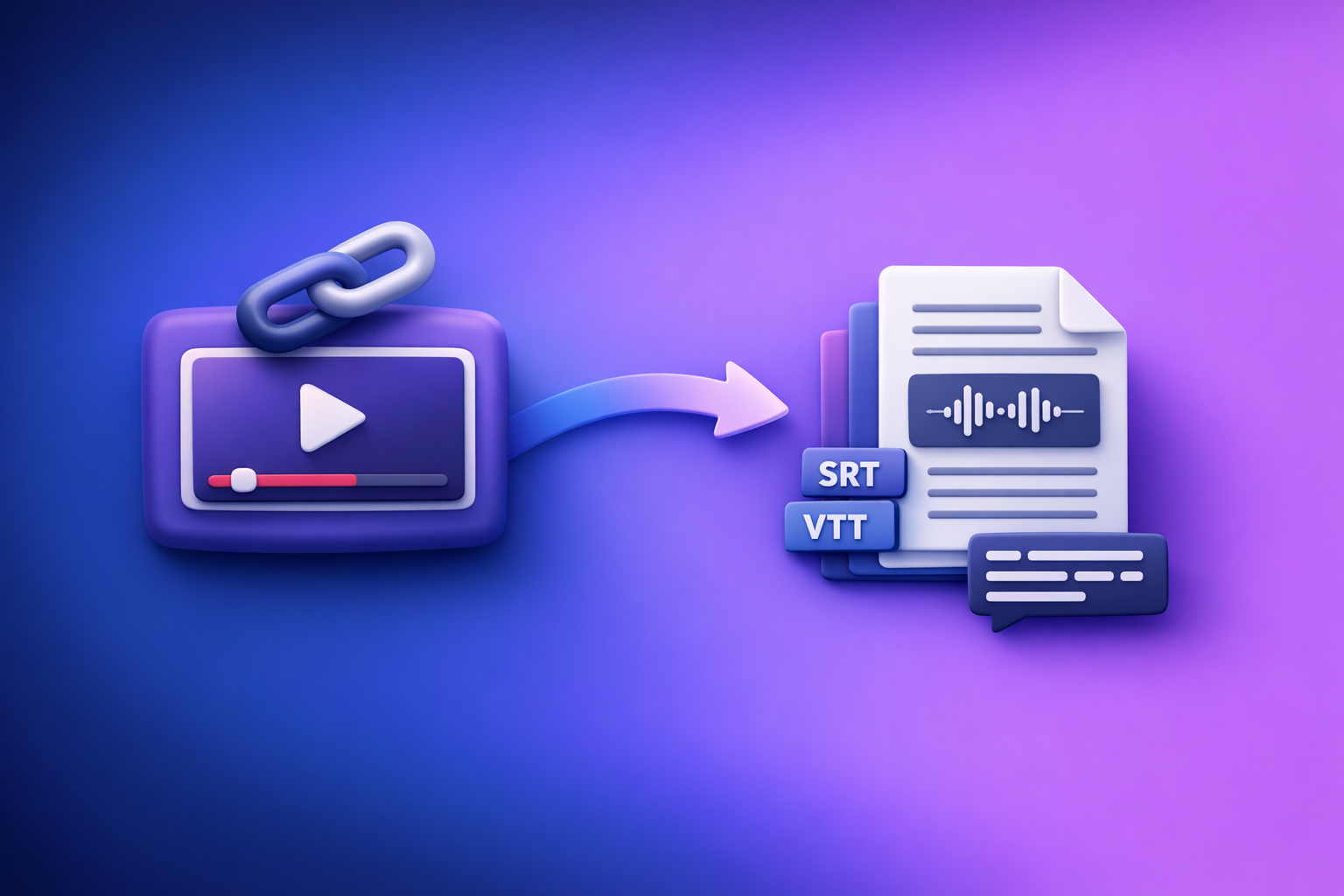
ChatGPT’s “upload video” feature is useful for quick analysis, but it’s not a dependable way to ship transcripts, subtitles, and caption files. The reliable approach in 2026 is link/MP4 → transcript + SRT/VTT → ChatGPT-on-text, because it’s exportable, repeatable, and doesn’t break on uploads.
TL;DR: When to Use ChatGPT Video Upload vs a Transcript-First Workflow
Use ChatGPT “upload video” when…
- You need high-level analysis (what happens, what objects appear, what’s discussed).
- The video is short, simple, and you can tolerate occasional failures.
- You’re doing one-off work where you don’t need strict deliverables (SRT/VTT, chapters, QA).
Don’t use it when you need…
- Production transcripts with consistent formatting and speaker labels.
- Caption files you can import into editors (SRT/VTT) with sane timing.
- Long-form content (webinars, podcasts, courses) where timeouts and partial output are common.
- A workflow that’s repeatable across a team.
The production-grade alternative (link/MP4 → transcript/subtitles → ChatGPT-on-text)
Brand POV: Downloading video files just to “try uploading again” is an outdated workflow. Link-based extraction is the future of creator productivity because it removes file-handling friction and makes transcript/caption outputs deterministic.
Use a transcript-first pipeline:
- Generate TXT transcript + SRT + VTT from a link or MP4.
- Run a quick quality pass (names, terms, punctuation).
- Use ChatGPT on the text to create chapters, summaries, posts, and caption variants.
If you need a tool entry point, see MP4 to Transcript and MP4 to SRT.
What “ChatGPT Upload Video” Actually Means in 2026 (Capabilities + Constraints)
Where the feature exists (web vs mobile vs desktop) and why results differ
In 2026, “upload video” behavior can differ by:
- Client (web app vs mobile app vs desktop wrapper)
- Account tier / model availability
- Session stability (browser memory, background tab throttling, mobile network switching)
Practical implication: a video that “works on mobile” may fail on web, or vice versa, even with the same file.
What ChatGPT can do with a video file (analysis vs transcription vs captions)
Treat video upload as best for:
- Scene understanding (what’s on screen, sequence of events)
- Content analysis (themes, topics, rough outline)
- Light extraction (sometimes: rough transcript-like text)
Do not assume it will produce:
- Complete transcription for long videos
- Accurate timestamps
- Import-ready caption files (SRT/VTT) without manual validation
Hard limits that commonly break workflows
File size / duration ceilings
Uploads fail most often when:
- The file is large (high bitrate, 4K, long duration)
- The session can’t keep a stable connection long enough to process
Even if the UI accepts the upload, processing may stall or return partial output.
Codec/container issues (MP4 variants, variable frame rate, audio tracks)
“MP4” is a container, not a guarantee. Common breakpoints:
- Variable frame rate (VFR) recordings
- Unusual audio codecs or missing audio tracks
- Multiple audio tracks where the wrong one is selected
Network + session timeouts
Long uploads + long processing = higher chance of:
- Timeouts
- Stuck processing
- Lost context if the session refreshes or the tab sleeps
Privacy/permissioned links and DRM
If your source is:
- A private Drive link
- A permissioned LMS
- A DRM-protected stream
…ChatGPT may not be able to access it (or may only see a placeholder), leading to incomplete or failed extraction.
Why ChatGPT Video Uploads Fail (Root Causes + Fast Triage)
Failure mode 1: Upload won’t start / stuck processing
Typical causes:
- Browser memory pressure (large file + long session)
- Network instability
- Server-side throttling during peak load
Fast fix:
- Try a different client (web ↔ mobile), and avoid backgrounding the tab.
Failure mode 2: “Unsupported format” or silent audio
Typical causes:
- MP4 with an unsupported audio codec
- No audio track, muted track, or wrong track selected
- Corrupted moov atom placement (common in some exports)
Fast fix:
- Verify the file plays with audio locally.
- If needed, re-encode with standard settings (see triage flow).
Failure mode 3: Partial transcript / missing sections
Typical causes:
- Processing timeouts
- Long duration
- Model stops early due to context/output constraints
Fast fix:
- Don’t keep re-uploading. Switch to transcript-first and process deterministically.
Failure mode 4: No timestamps / unusable for captions
Typical causes:
- Video upload analysis doesn’t guarantee timestamp generation
- Even when timestamps appear, they may be inconsistent for SRT/VTT rules
Fast fix:
- Generate SRT/VTT first, then use ChatGPT to rewrite lines without changing timing.
Failure mode 5: Output can’t be exported as SRT/VTT reliably
Typical causes:
- Formatting drift (missing sequence numbers, malformed timestamps)
- Line length and reading speed not enforced
- Inconsistent timecode precision
Fast fix:
- Use a caption generator that outputs valid SRT/VTT, then run a constrained edit pass in ChatGPT.
5-minute triage flow (do this before re-uploading)
Confirm source type (public link vs local file)
- If you already have a public URL, prefer link-based extraction.
- If you only have a local file, consider whether you can host it as a stable public link for processing.
Check duration + file size
- If it’s 60–120 minutes, assume upload risk is high.
- If it’s 4K/high bitrate, assume upload risk is high.
Verify audio track + language
- Confirm there is a clear audio track.
- Identify the primary language and any code-switching.
Re-encode only if needed (what settings matter)
Re-encode when you see “unsupported format” or silent audio. Settings that usually improve compatibility:
- Container: MP4
- Video codec: H.264
- Audio codec: AAC
- Constant frame rate (CFR) if possible
Decide: retry upload vs switch to transcript-first
Use this rule:
- Retry upload only for short videos where you don’t need export-ready captions.
- Switch to transcript-first for anything you must ship (transcript, SRT/VTT, chapters, repurposed content).
For a deeper companion guide, see Chat GPT Transcribe: What Actually Works in 2026 (Audio, Video Links, and the Reliable Workflow).
The Reliable Workflow: Link/MP4 → Transcript + SRT/VTT → ChatGPT-on-Text
Why transcript-first wins (determinism, exports, repeatability)
Transcript-first is production-grade because:
- Deterministic outputs: you get TXT + SRT + VTT every time.
- Exportable deliverables: editors and platforms accept standard caption formats.
- Repeatable QA: you can validate timestamps, reading speed, and formatting.
- Faster iteration: ChatGPT edits text instantly without reprocessing video.
Brand POV: The future is link-based. Downloading, re-uploading, and re-encoding is busywork that kills throughput for creators and teams.
Step-by-step implementation (VideoToTextAI)
Step 1: Choose input (YouTube/Drive/public URL or MP4)
Pick the most stable input you can:
- YouTube URL (best for speed and repeatability)
- Public file URL (Drive/share link if accessible)
- MP4 upload only when a link isn’t possible
If your starting point is YouTube and you want written content fast, see YouTube to Blog.
Step 2: Generate outputs you can ship (TXT + SRT + VTT)
Generate:
- Transcript (TXT) for editing and repurposing
- SRT for most video editors and social platforms
- VTT for web players and accessibility workflows
Related tools:
- MP4 to VTT
- Podcast Transcription (for audio-first workflows)
Step 3: Quality pass (speaker labels, punctuation, terminology)
Do a fast QA pass before you involve ChatGPT:
- Fix speaker names (host/guest)
- Correct brand terms, product names, acronyms
- Normalize punctuation and paragraph breaks
- Flag any unclear audio sections
This step prevents ChatGPT from “guessing” terminology and creating confident errors.
Step 4: Send the transcript to ChatGPT (prompts that work)
Work on text, not video. Paste the transcript (or chunks) and use constrained prompts.
Prompt: clean transcript without changing meaning
You are editing a verbatim transcript.
Rules:
- Do not add new facts. Do not remove meaning.
- Fix punctuation, casing, and obvious mis-hearings.
- Keep speaker labels as-is.
- If a phrase is unclear, mark it as [inaudible] instead of guessing.
Output: cleaned transcript only.
Prompt: create chapters with timestamps (use existing timestamps)
Create YouTube chapters from this transcript.
Rules:
- Use the existing timestamps already present in the transcript.
- Do not invent timestamps.
- 6–12 chapters.
- Format exactly as:
00:00 Title(one per line).
Output chapters only.
Prompt: generate captions variants (short/medium/long)
Rewrite these captions into 3 variants: short, medium, long.
Rules:
- Keep the same meaning.
- Do not change timestamps.
- Short: simplify wording, remove filler.
- Medium: natural conversational.
- Long: slightly more descriptive but still readable.
Output in three labeled blocks.
Prompt: repurpose into blog + LinkedIn + X threads
Turn this transcript into:
- A blog post outline (H2/H3) with key takeaways
- A LinkedIn post (150–250 words) with a strong hook + 3 bullets
- An X thread (8–12 tweets) with one idea per tweet
Rules:
- No invented claims.
- Keep product mentions minimal and factual.
- Include 3 quotable lines from the speaker.
Output in three sections.
Step 5: Export + publish (caption files, CMS post, social drafts)
- Export SRT/VTT and validate formatting before upload.
- Publish transcript/blog content in your CMS.
- Schedule social drafts and clip notes.
If your source is short-form social, see TikTok to Transcript.
If you want the link-based workflow in one place, use VideoToTextAI.
Implementation: Exact Prompts + Templates (Copy/Paste)
Transcript cleanup prompt (with constraints)
Clean this transcript for readability while preserving meaning.
Constraints:
- No new facts, no deletions that change intent.
- Keep all numbers, dates, and names unchanged unless clearly wrong.
- Keep speaker labels and order.
- Convert filler words only when they reduce clarity (e.g., repeated “um”).
- Mark uncertain words as [unclear].
Return: cleaned transcript in plain text.
Caption improvement prompt (line length + reading speed rules)
Improve these SRT captions without changing timestamps.
Rules:
- Do not change timecodes or sequence numbers.
- Max 2 lines per caption.
- Target 32–42 characters per line.
- Avoid splitting names across lines.
- Keep reading speed comfortable; shorten wording if needed.
Output valid SRT only.
Chaptering prompt (YouTube chapters format)
Create YouTube chapters from this timestamped transcript.
Rules:
- Use only timestamps present in the transcript.
- Start with 00:00.
- Titles must be 2–6 words, action-oriented.
- Avoid duplicate titles.
Output one chapter per line inMM:SS TitleorHH:MM:SS Title.
Repurposing prompt pack (blog outline, hooks, clips, quotes)
From this transcript, produce:
- 5 blog headlines (SEO-friendly, not clickbait)
- A blog outline (H2/H3)
- 10 short hooks for social (1–2 sentences each)
- 8 “clip moments” with the exact quote + why it’s compelling
- 6 pull quotes (<= 140 characters)
Rules:- No invented facts.
- Keep quotes verbatim.
- If a quote is unclear, skip it.
Output in labeled sections.
Checklist: Production-Grade Deliverables (Before You Ship)
Transcript checklist (accuracy + formatting)
- Speaker labels are consistent (Host/Guest names correct)
- Key terms spelled correctly (product names, acronyms)
- Obvious mis-hearings fixed; uncertain parts marked [unclear]
- Paragraph breaks added for readability
- No “helpful” additions that weren’t said
Captions checklist (SRT/VTT validity + timing sanity)
- File validates as proper SRT or VTT (no malformed timecodes)
- Captions are not too dense (reasonable reading speed)
- Line breaks are clean (max 2 lines; no awkward splits)
- Timing aligns with speech (no long delays or early reveals)
- Special characters render correctly on target platform
Repurposing checklist (claims, links, CTAs, brand voice)
- Claims match the transcript (no invented stats)
- Any recommendations are framed with context and constraints
- Links are correct and minimal
- Tone matches your brand voice (not overly promotional)
- Clear CTA exists where appropriate (newsletter, demo, download)
Compliance checklist (PII, client content, permissions)
- No exposed PII (emails, phone numbers, addresses)
- Client/internal details removed or approved
- You have permission to publish the content
- Music/third-party content considerations reviewed
Common Scenarios (Pick Your Path)
“I have a YouTube link and need a transcript + captions today”
Do this:
- Use a link-based extractor to generate TXT + SRT + VTT.
- Run the transcript cleanup prompt.
- Publish captions and repurpose from the cleaned transcript.
Fast path tools:
- YouTube to Blog
- MP4 to SRT (if you also have the file)
“I have a 60–120 minute MP4 and ChatGPT keeps failing”
Do this:
- Stop re-uploading to ChatGPT.
- Generate transcript + captions first, then use ChatGPT for editing and repurposing.
Use:
“I need subtitles in multiple languages”
Do this:
- Generate a high-quality source-language transcript first.
- Translate from the transcript (not from raw video upload output).
- Create language-specific caption files and validate each.
Tip: keep a glossary of product terms so translations stay consistent.
“I need a blog post and social content from a webinar recording”
Do this:
- Extract transcript + chapters.
- Use ChatGPT-on-text to produce: blog outline, key takeaways, quotes, and clip moments.
- Build a publishing package (CMS draft + social drafts + caption files).
Competitor Gap
Most guides stop at “try uploading again” (no deterministic workflow)
That advice ignores the real constraint: uploads are inherently brittle (size, codecs, timeouts). A production workflow must not depend on a single UI upload succeeding.
Missing: export-ready SRT/VTT requirements and validation steps
Competitor content often skips:
- SRT/VTT formatting rules
- Reading speed constraints
- Validation before publishing
Missing: a triage decision tree (retry vs re-encode vs transcript-first)
Without a decision tree, teams waste hours re-uploading. The correct approach is to switch to transcript-first as soon as you need exportable deliverables.
Missing: prompt templates that assume timestamps + caption constraints
Generic prompts break captions by:
- Changing timestamps
- Reflowing lines unpredictably
- Producing invalid SRT/VTT
Missing: end-to-end shipping checklist (transcript → captions → repurpose)
Most posts don’t cover the full “ship it” path. Production requires deliverables + QA + compliance, not just “it worked once.”
FAQ (People Also Ask)
Can ChatGPT transcribe a video if I upload it?
Yes, sometimes, but results vary widely based on platform, video length, codecs, and session stability. If you need a transcript you can ship (and reuse), generate the transcript first and use ChatGPT to refine the text.
Why does ChatGPT say my video upload failed or unsupported?
Common reasons include file size/duration ceilings, unsupported codec combinations inside an MP4 container, variable frame rate issues, missing/incorrect audio tracks, and network/session timeouts.
Can ChatGPT generate SRT or VTT captions from a video?
ChatGPT can format captions, but it often lacks reliable timestamps from direct video uploads. The production approach is: generate SRT/VTT first, then use ChatGPT to improve wording while preserving timecodes.
What’s the best way to transcribe a YouTube video with ChatGPT?
Use a link-based workflow to extract a transcript and captions, then paste the transcript into ChatGPT for cleanup, chapters, and repurposing. For a related walkthrough, see ChatGPT “Upload Video” Feature (2026): What Works, Why Uploads Fail, and the Production-Grade Link → Transcript Workflow.
Related posts
Reel Analyser (Instagram Reels): Transcript‑First Competitor Research, Hook/CTA Extraction, and Repurposing Workflow (VideoToTextAI)
Video To Text AI
A 2026 reel analyser should turn Instagram Reel links into a searchable transcript library you can tag for hooks, CTAs, objections, and topic clusters—then export into repurposing-ready drafts without a download/upload loop.
Traducir video de Instagram (Reels) en 2026: workflow transcript-first para traducir, sacar hooks/CTAs y repurpose (con VideoToTextAI)
Video To Text AI
Aprende a traducir un Reel de Instagram con un flujo URL→transcripción→traducción→subtítulos, y a convertir esa traducción en un activo de investigación para hooks, CTAs, objeciones y clusters de contenido.
Reel Analyzer: Transcript‑First Instagram Reels Research (Hooks, CTAs, Objections) + Workflow Guide (VideoToTextAI)
Video To Text AI
A reel analyzer should turn any public Instagram Reel link into a searchable transcript library you can mine for hooks, CTAs, objections, and topic clusters—then repurpose into original drafts with a repeatable SOP.